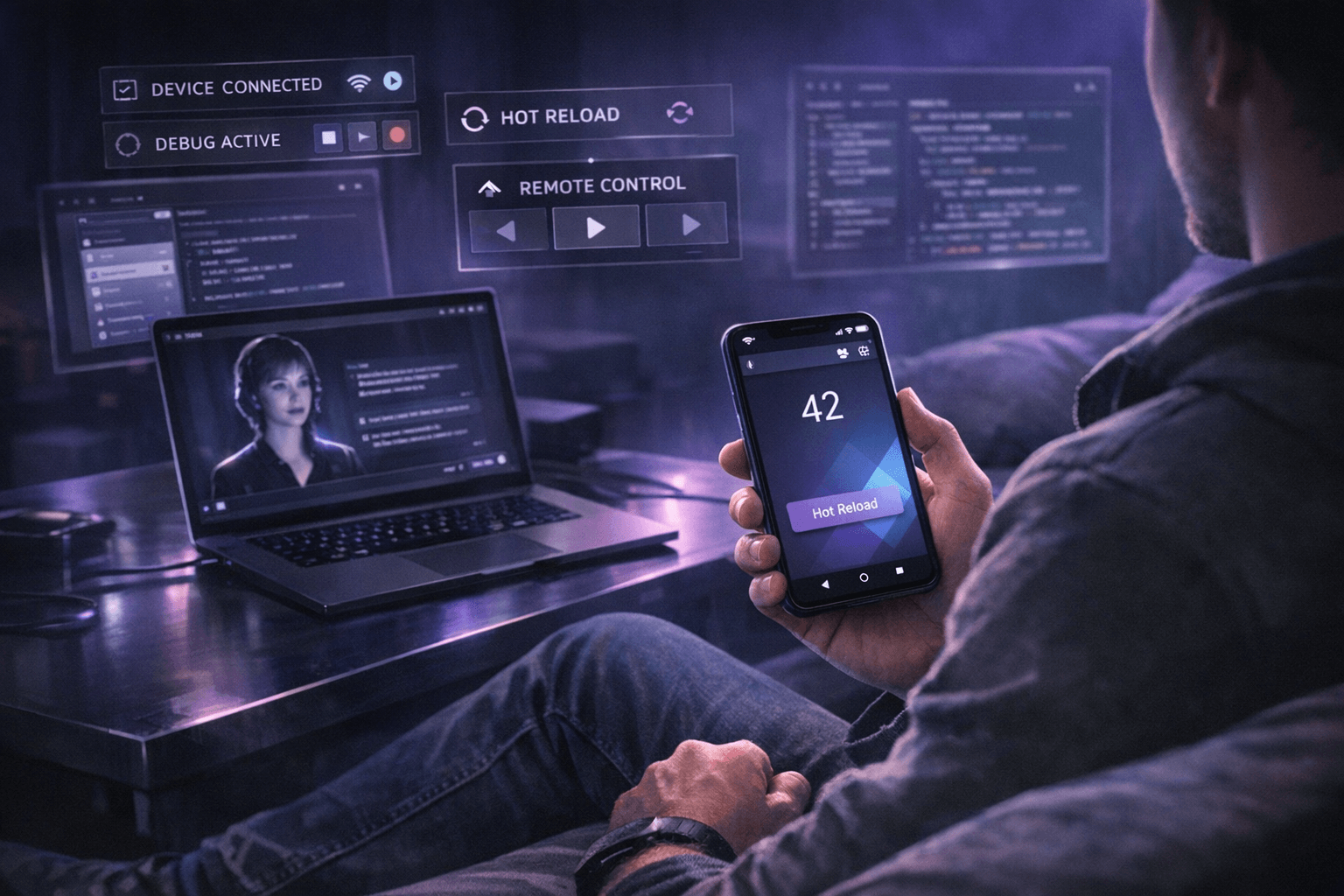
For many Flutter teams, the friction in mobile debugging is not only in the bug itself but in the movement around it. A device cable disconnects, the phone is across the room, a layout issue only appears on the real handset, and the feedback loop breaks. Flutter mobile debugging over Wi-Fi matters because it keeps the app reachable on the actual device while reducing the physical overhead of staying attached to a laptop at all times.
Summary
The Android Developers guide for running apps on hardware devices explains that Android 11 and later support deployment and debugging over Wi-Fi through ADB, as long as the workstation and device are on the same network and the device is paired. Flutter's hot reload documentation adds the second half of the loop: in debug mode, updated Dart code can be injected into the running app and the widget tree rebuilt while preserving state in most cases.
That combination makes a practical workflow possible. The developer can inspect the issue on a real phone, capture or send a screenshot, let an agent reason over the UI and code context, apply a fix, and use hot reload to check the result quickly. It is not a replacement for full testing, but it is a useful working rhythm for everyday interface problems.
What happened
The underlying technologies are familiar on their own. Android Studio supports pairing devices over Wi-Fi. Flutter supports hot reload from the editor or terminal. The meaningful shift comes from how these are combined in a single agent workflow rather than treated as separate steps.
In a Nic Hyper Flow setup, the phone is not only the target device. It can also be part of the diagnostic input. A developer sees a rendering problem on the handset, shares the current screen with the agent, and keeps the debugging context anchored in what is visibly wrong instead of relying on memory or a rushed written description.
This matters for the common sofa programming scenario: the laptop may remain nearby as the execution host, but the real interaction happens with the smartphone in hand. The workflow becomes less about returning to a desk posture and more about keeping debugging continuous wherever the developer already is.
Why it matters
UI defects often lose detail when translated into text. A screenshot preserves spacing, clipping, contrast, missing elements and awkward states that may be tedious to describe accurately. When the same debugging session also includes repository access and tool execution, the agent can reason from that visual evidence and from the codebase at the same time.
This creates a narrower loop between observation and correction. The developer does not need to switch between one tool for describing the bug, another for editing, another for generating an asset, and another for verifying whether the fix looks right. The loop becomes: inspect, share, fix, reload, compare.
The practical gain is not novelty. It is that the debugging loop stays close to the real device, the visible UI state and the code change that follows from it.
Flutter over Wi-Fi
Android's documentation is clear that Wi-Fi debugging requires the phone and workstation to be on the same wireless network and, for the modern pairing flow, a device running Android 11 or newer. Once paired, the device becomes available for deployment and debugging without remaining physically connected by USB.
For Flutter developers, that changes the ergonomics of real-device testing. The app can keep running on the handset while the developer moves around naturally, checks gestures and transitions on the phone itself, and still sends updates back through the standard debug loop. Flutter's documentation describes hot reload as injecting updated source into the Dart runtime and rebuilding the widget tree, which is exactly what makes short validation cycles practical after each fix.
There are limits. Native code changes still require a fuller restart, and Wi-Fi debugging depends on network conditions and pairing stability. Even so, for ordinary Dart and widget iteration, remote Flutter hot reload is often enough to keep momentum high while staying grounded in the real device experience.
Screenshot to fix workflow
This is where Nic Hyper Flow becomes more than a chat surface. A developer can take a screenshot from the phone, send it to the agent, and ask for a targeted correction. The agent already has repository context, so it can inspect the relevant files, patch the code, and keep the fix consistent with the project structure.
After the fix, Flutter hot reload closes the loop. The new Dart code is pushed into the running app, the widget tree rebuilds, and the developer can immediately compare the updated screen against the original screenshot. That screenshot-to-fix-to-hot reload cycle is especially useful for layout regressions, typography adjustments, spacing issues, state visibility problems and asset placement.
The same logic extends to visuals. If a screen needs a missing illustration, empty-state image or banner, a context-aware agent can generate the asset inside the same workflow, compress and save it in the correct place, and reference that generated file in code without losing track of filenames or relative paths. That is more useful than isolated image generation because the agent understands why the asset is needed, where it belongs and how it should be wired into the Flutter or web implementation. In other words, the same agent can create the asset and then correctly reference that saved asset in code.
That asset-to-code continuity is easy to overlook, but it is one of the more practical parts of the workflow. A context-aware agent is not producing a decorative image in a vacuum; it is producing a file that belongs to a specific screen, a specific bug fix or a specific content package, and then updating the implementation so that the generated asset is actually used.
Connection to Nic Hyper Flow
Nic Hyper Flow is relevant here because it keeps the work in one operational environment. The agent can inspect code, accept screenshots, use tooling, generate contextual assets, write files and leave the project in a publishable or runnable state. For mobile-first developers, that reduces the fragmentation that usually appears when debugging from the phone while editing elsewhere.
In practice, the value is subtle but concrete: the developer can remain focused on the real screen state, the agent can act directly on the codebase, and the result can be checked on the device again with minimal ceremony. This makes the mobile remote workflow feel less improvised and more like a legitimate way to work through ordinary Flutter issues.
It also fits the sofa programming scenario unusually well. Instead of treating mobile as a secondary observation device, the workflow treats the smartphone as a first-class debugging surface and the agent as the bridge between what the developer sees and what the code should become.
Conclusion
Wi-Fi debugging and Flutter hot reload are established capabilities, but they become more useful when combined with an agent that can receive screenshots, edit code and keep asset references coherent. That combination does not eliminate the need for deeper debugging tools, yet it does make a day-to-day class of mobile UI work faster and less physically constrained.
For Flutter developers who increasingly work in flexible environments, the important point is simple: a real phone on the same Wi-Fi network, a running debug session, an agent with project context and a reliable hot reload loop are often enough to turn a loose remote workflow into a practical one.
Sources
This article was prepared with reference to the following documentation pages: